Getting Started
5 minute read
Install
Exaviz Management is free and installs from the signed Exaviz apt repository at apt.exaviz.com. You need shell access to the board (SSH, or a keyboard and monitor). If /etc/apt/sources.list.d/exaviz.list already exists on the board (for example because exaviz-dkms came from the repository), skip to step 2.
1. Add the Exaviz repository (once per board). The script detects your release codename (bookworm, trixie, questing or resolute):
curl -fsSL https://apt.exaviz.com/exaviz-repo-key.asc | sudo gpg --dearmor -o /usr/share/keyrings/exaviz-archive-keyring.gpg
gpg --show-keys /usr/share/keyrings/exaviz-archive-keyring.gpg
# Detect distribution and add the repository
DISTRO=$(lsb_release -cs 2>/dev/null || (grep VERSION_CODENAME /etc/os-release 2>/dev/null | cut -d= -f2) || echo "trixie")
echo "deb [arch=arm64 signed-by=/usr/share/keyrings/exaviz-archive-keyring.gpg] https://apt.exaviz.com ${DISTRO} main" | sudo tee /etc/apt/sources.list.d/exaviz.list
Check that gpg --show-keys shows this fingerprint before you continue. If it does not match, stop and email support@exaviz.com.
DC76 6489 16F3 2724 7DAC F505 8957 8BF3 7942 EFDF
(gpg prints it without spaces: DC76648916F327247DACF50589578BF37942EFDF.)
2. Install one of the two packages. They are mutually exclusive:
sudo apt update
# Board without a screen (dashboard in a browser only):
sudo apt install exaviz-management
# Board with an HDMI screen that should show the dashboard fullscreen on boot
# (install this one instead of the line above, not as well):
# sudo apt install exaviz-management-kiosk
On a board that runs the HDMI kiosk, install and upgrade only exaviz-management-kiosk. Do not run sudo apt install exaviz-management on a kiosk board: the kiosk package refuses to be removed, so apt stops the swap. To deliberately switch a board to the headless package, run the command as sudo env EXAVIZ_SWITCH_VARIANT=1 apt install exaviz-management.
apt checks the Exaviz signature on every download and refuses anything Exaviz did not publish.
Upgrading
sudo apt update
sudo apt install --only-upgrade exaviz-management exaviz-management-kiosk
This upgrades whichever package the board has and never switches between them. A plain sudo apt upgrade also works. Your settings, port labels and fleet pairing are kept.
Accessing the Dashboard
Connect your computer or phone to the same network as your Exaviz board. Open a web browser and navigate to the board’s IP address:
https://<board-ip>
The dashboard uses HTTPS with a self-signed certificate by default. Your browser will show a security warning on first visit. Click “Advanced” and “Proceed” (or equivalent) to continue. You can install your own certificate later. See Security and TLS for details.
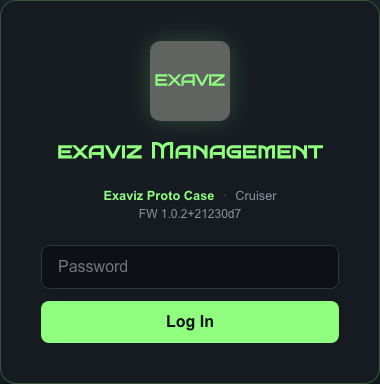
The login page showing the product name and password field.
First Login
The default password is password. You must change it at first login.
- Enter
passwordin the password field - Click Log In
- The dashboard asks you to set a new password
- Enter your current password (
password) and choose a new password (minimum 8 characters) - Click Change Password
After changing the password, you will be logged into the dashboard.
The HDMI kiosk screen also asks for the password; it never signs in by itself. The dashboard starts in dark mode; use the theme button in the header to switch to light.
Until the default password is changed, the board refuses every change and every export (port control, reboot, network, settings, backup, diagnostics, storage files), from the dashboard, the API, the fleet and Home Assistant alike. Viewing status still works. This is a security requirement, not optional.
Dashboard Overview
After logging in, you will see the main dashboard. Here is what each section shows:
Header Bar

The header bar shows the product name, board name, view toggle (Board/Fleet), LIVE indicator, and action buttons.
The top bar contains:
- Product name and logo (top left)
- View toggle - Switch between Board view and Fleet view (if fleet is enabled)
- Action buttons - Boards, TLS, Reboot, Light/Dark theme toggle, Logout
- Live indicator - A green pulse shows the dashboard is receiving real-time data
Board Information
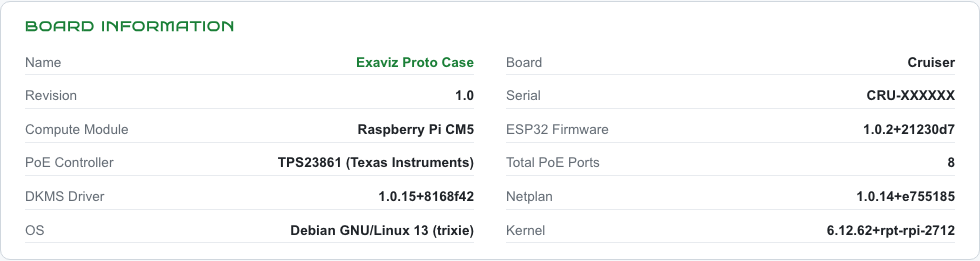
Board information showing name, variant, compute module, serial, firmware versions, and driver versions.
A summary panel showing:
- Board name and variant (Cruiser, Cruiser Lite, Cruiser Keel, or Interceptor)
- Compute module (Raspberry Pi CM4, CM5, etc.)
- PSE controller model
- Serial number
- Firmware and driver versions
- Hardware row: storage (on a Cruiser, the NVMe M.2 slot and 2 SATA ports, on an Interceptor the 5 SATA ports, followed by the drives actually fitted), the WAN port (shown as 2.5 Gbps on a Cruiser, 1 Gbps on an Interceptor), and on a Cruiser the wireless radio. The WAN link speed shows on hover, and in the row itself only when the link runs below the rated speed. A Cruiser shows its 120 W PoE budget, shared by all ports (Cruiser Keel shows “No PoE”). An Interceptor with PoE ports shows the 240 W ceiling of the supplied 48 V converter. The Interceptor does not enforce a limit, so add up the draw of your devices.
Health Metrics

Quick-reference health bar with CPU temperature, memory, load, uptime, mDNS hostname, and total PoE draw.
A row of quick-reference cards:
- CPU Temp - Current processor temperature
- Memory - RAM usage percentage
- Load - System load average
- Uptime - Time since last reboot
- mDNS - Board’s mDNS hostname for fleet discovery
- PoE Draw - Total power being delivered across all ports
PoE Ports
Port tiles arranged in the same physical layout as the board (even ports on top, odd on bottom). Each tile shows the port state, power data, and control buttons. See PoE Port Management for details.
Port Groups
Named groups of ports for bulk operations. See PoE Port Management for details.
Network Ports
A table showing the board’s network switch ports with link state (Connected, No cable or Disabled), speed, traffic counters, IP addresses, and MAC addresses. PoE ports fold into one line on boards that have a PoE Ports section.
Recent Activity
The most recent entries from the audit log, showing actions taken on the board.
Theme Toggle
Click the Light or Dark button in the header to switch themes. Your preference is saved and persists across sessions.
Session Expiration
Login sessions expire after 24 hours. You will be redirected to the login page when your session expires. All sessions are invalidated if the password is changed.
Next Steps
- PoE Port Management - Learn how to monitor and control your PoE ports
- Fleet Management - Set up multi-board management
- Security and TLS - Configure HTTPS certificates
Last modified October 18, 2026