System Health
3 minute read
Health Metrics

The health bar shows CPU temperature, memory usage, root disk usage, load average, uptime, mDNS hostname, and total PoE power draw.
The dashboard displays a row of health cards below the board information panel:
| Metric | What It Shows |
|---|---|
| CPU Temp | Current processor temperature in Celsius. Red above 80°C |
| Memory | RAM usage as a percentage (used / total). Yellow above 90% |
| Disk | Root filesystem used of total, and space available. Yellow above 85% used or below 512 MB available, red above 95% used or below 256 MB available |
| Load | System load average (1-minute) |
| Uptime | Time since last reboot (days, hours, minutes) |
| mDNS | Board’s mDNS hostname for fleet discovery |
| PoE Draw | Total power being delivered across all PoE ports |
These metrics update in real-time via the SSE connection (every 2 seconds).
The CPU, memory, and disk tiles change color at the same points where the board raises an alert. A tile with an open alert keeps that alert’s color and shows a View alert link until you resolve the alert, even after the reading has recovered. If a board’s software is too old to report these values, its tiles show no color and the tooltip says the thresholds were not reported.
Network Switch Ports
The Network Ports section shows every switch port on the board:
| Column | Description |
|---|---|
| Port | Port name (poe0-poe7, eth0, eth1, ext0, etc.) |
| State | Connected, No cable or Disabled, with a colored indicator |
| Speed | Negotiated speed: Mbps below 1 Gbps, Gbps from 1 Gbps up (100 Mbps, 1 Gbps, 2.5 Gbps) |
| RX | Bytes received |
| TX | Bytes transmitted |
| IP Address | Assigned IP address (if any) |
| MAC | Hardware MAC address |
The states mean:
- Connected: a cable is plugged in and the link is up.
- No cable: the port has no link. Check the cable and the device at the other end.
- Disabled: the port is turned off on the board.
Hover a state to see what it means and the board’s own term for it (for example
lowerlayerdown). On a phone the table scrolls sideways, so each MAC stays in its row.
On boards with a PoE Ports section, the poe ports fold into one line in this table. The line
shows how many of them have a network link and their total traffic, because the PoE Ports section
already shows each port’s status and power. Open the line to see each port’s row, including its
Device LAN subnet, or use PoE Ports to jump to that section.
Switch ports are auto-discovered via the DSA (Distributed Switch Architecture) driver. The table adapts to your board variant.
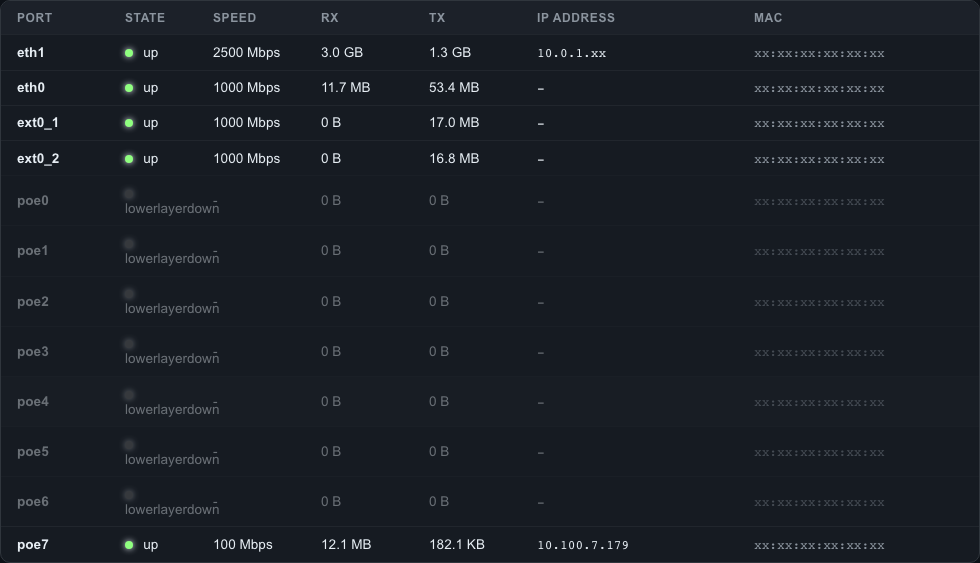
Network ports showing link state, speed, traffic counters, IP addresses, and MAC addresses for all switch and PoE ports.
Reading the Health Data
CPU Temperature
Normal operating range depends on your environment and compute module:
- < 60C - Normal operation
- 60-80C - Warm but acceptable, especially under load
- > 80C - Consider improving ventilation or reducing load
The board raises a critical alert above 80°C. The value is fixed; see Alerts.
Memory Usage
- < 50% - Healthy for most workloads
- 50-80% - Normal under heavy load or with NVR/recording applications
- > 90% - The board raises a warning alert. May indicate a memory leak or need for more RAM
Load Average
The load average represents the number of processes waiting for CPU time. On a quad-core CM5:
- < 1.0 - Light load
- 1.0-4.0 - Moderate load (one to four cores busy)
- > 4.0 - Heavy load (all cores saturated, processes queuing)
API Access
Health metrics are available via the REST API:
curl -k -H "Authorization: Bearer <token>" \
  https://<board-ip>/api/v1/system/health
See the API Reference for response format.
Last modified October 18, 2026